Shareable Links
Share your conversations with others using IntelliAsk's shareable links feature, complete with QR codes, branching messages, and artifacts support.
Shareable links let you publish a read-only snapshot of a conversation that others can open through a generated URL or QR code. Recipients see the messages, any branches, and any artifacts you generated, without being able to reply or change anything.
Key Features
- Easy sharing: Generate a link in a couple of clicks.
- QR codes: Open the conversation on a phone by scanning a code.
- Branching: Shared links keep every branch of the conversation.
- Artifacts: React components, HTML previews, and Mermaid diagrams stay interactive.
- Recipient preferences: Viewers can switch language and theme.
- Link management: One dashboard to review or revoke every link you've created.
Share a Conversation
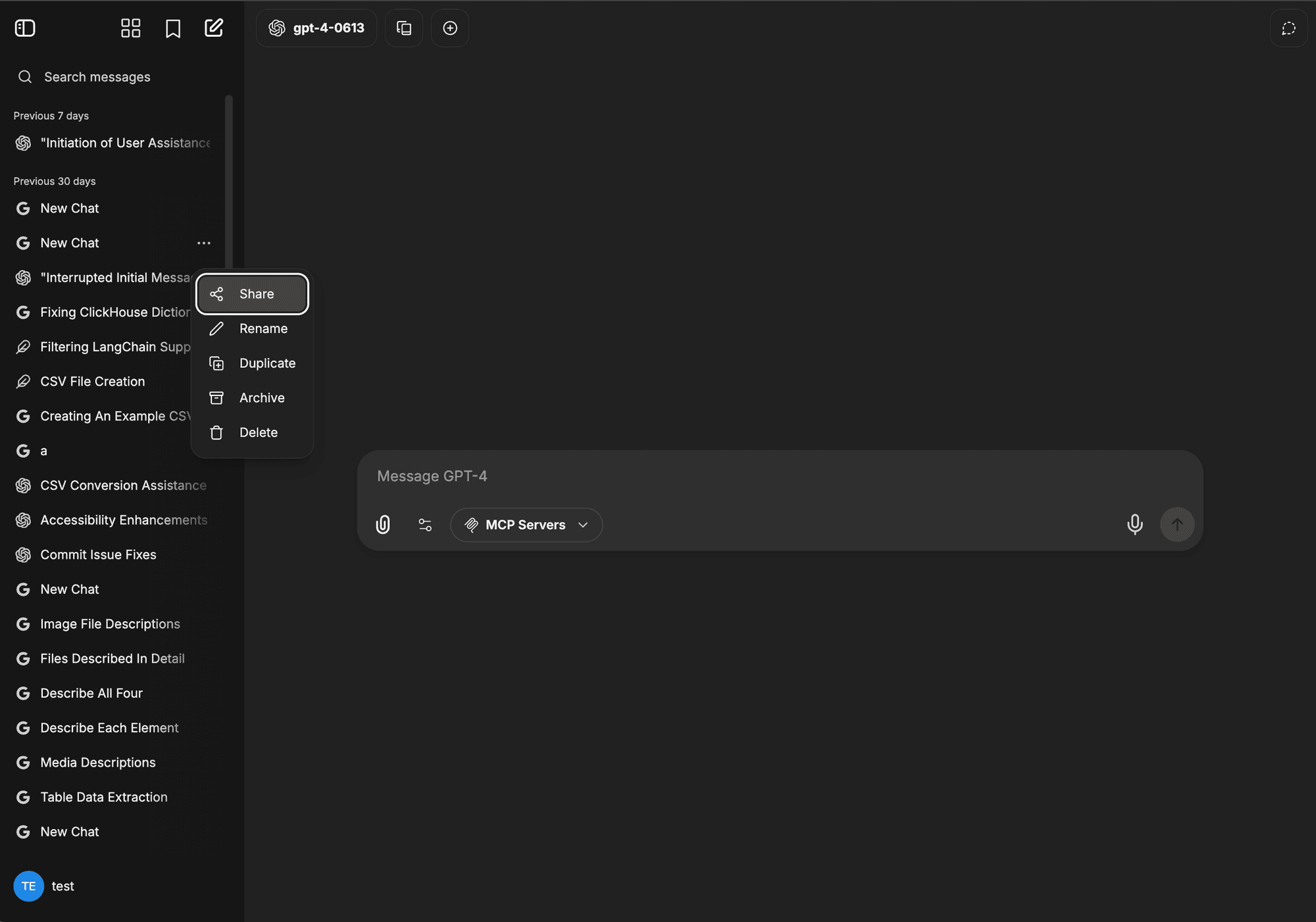
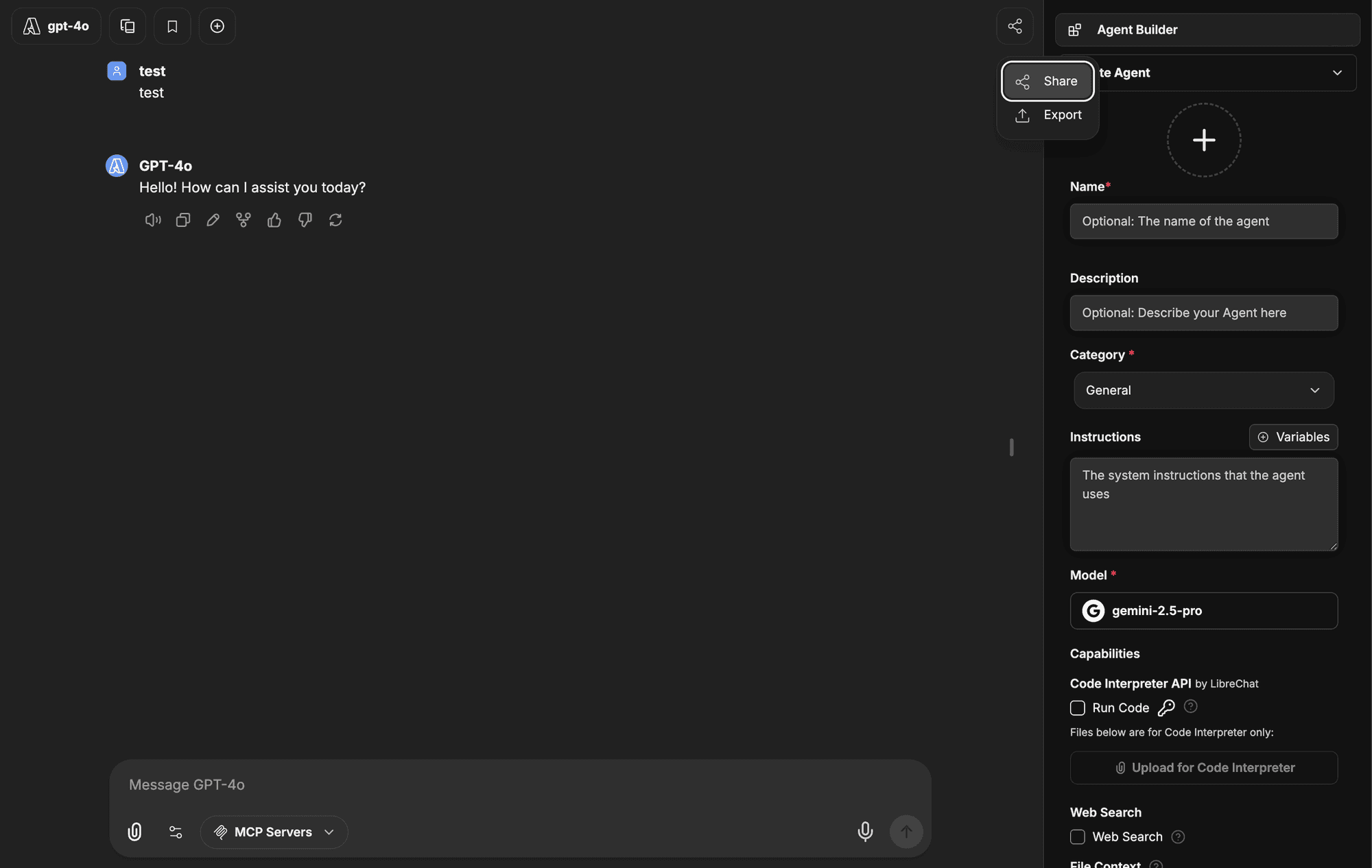
You can start sharing from two places.
From the conversation menu. Open the menu next to a conversation in the sidebar and choose the share option.
From the share button. Inside an active conversation, use the dedicated share button in the header.
Share Link Options
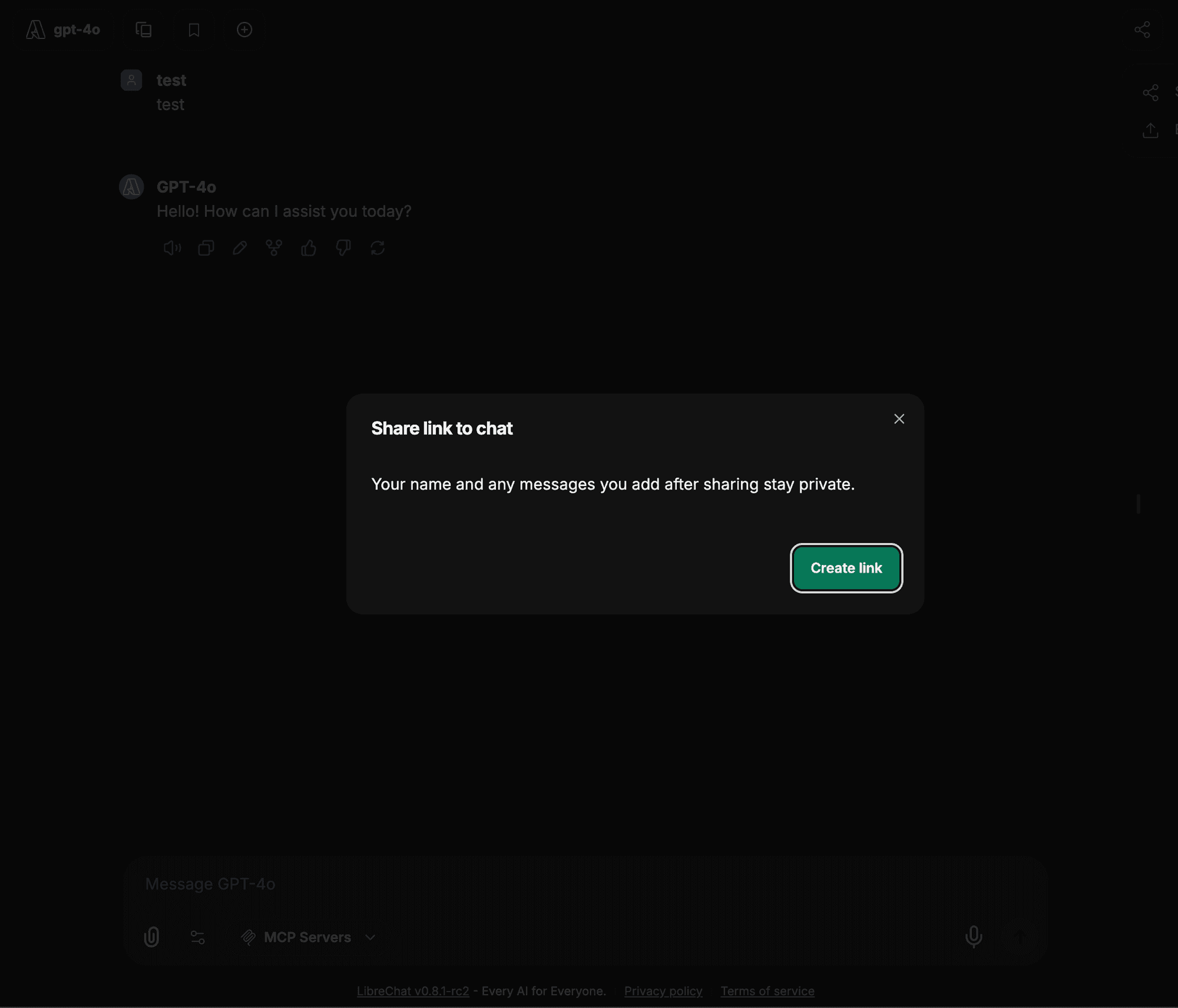
Creating a link opens a modal where you control how the conversation appears to recipients.
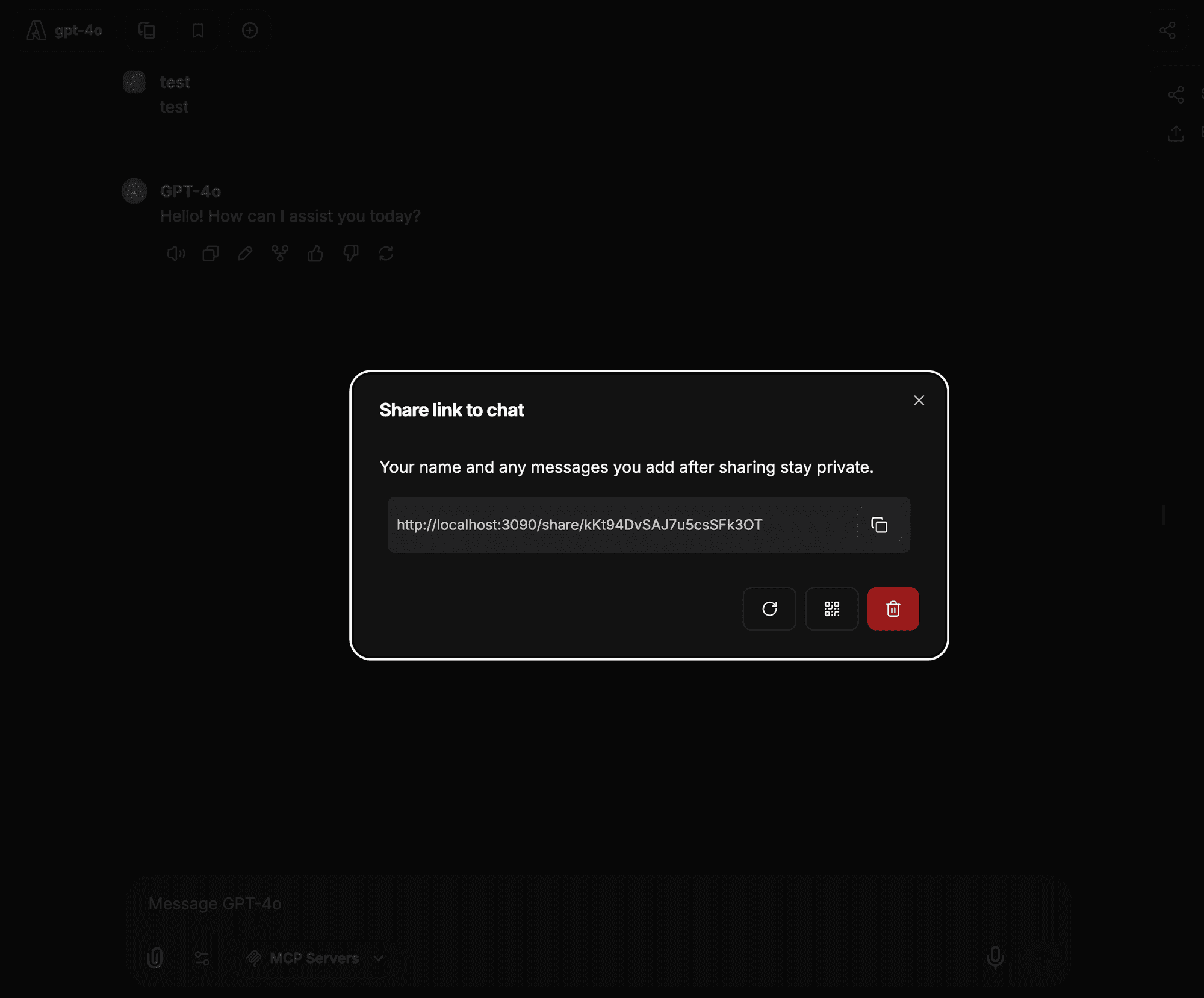
Once a link exists, the modal offers these actions:
- Refresh link: Generate a new URL, which invalidates the previous one.
- Generate QR code: Create a QR code for mobile access.
- Copy link to clipboard: Copy the shareable URL.
- Delete link: Remove the link and revoke access for anyone who has it.
QR Codes
Generate a QR code for any shared conversation, then scan it with a phone camera to open the link. The code points to the same shared URL.
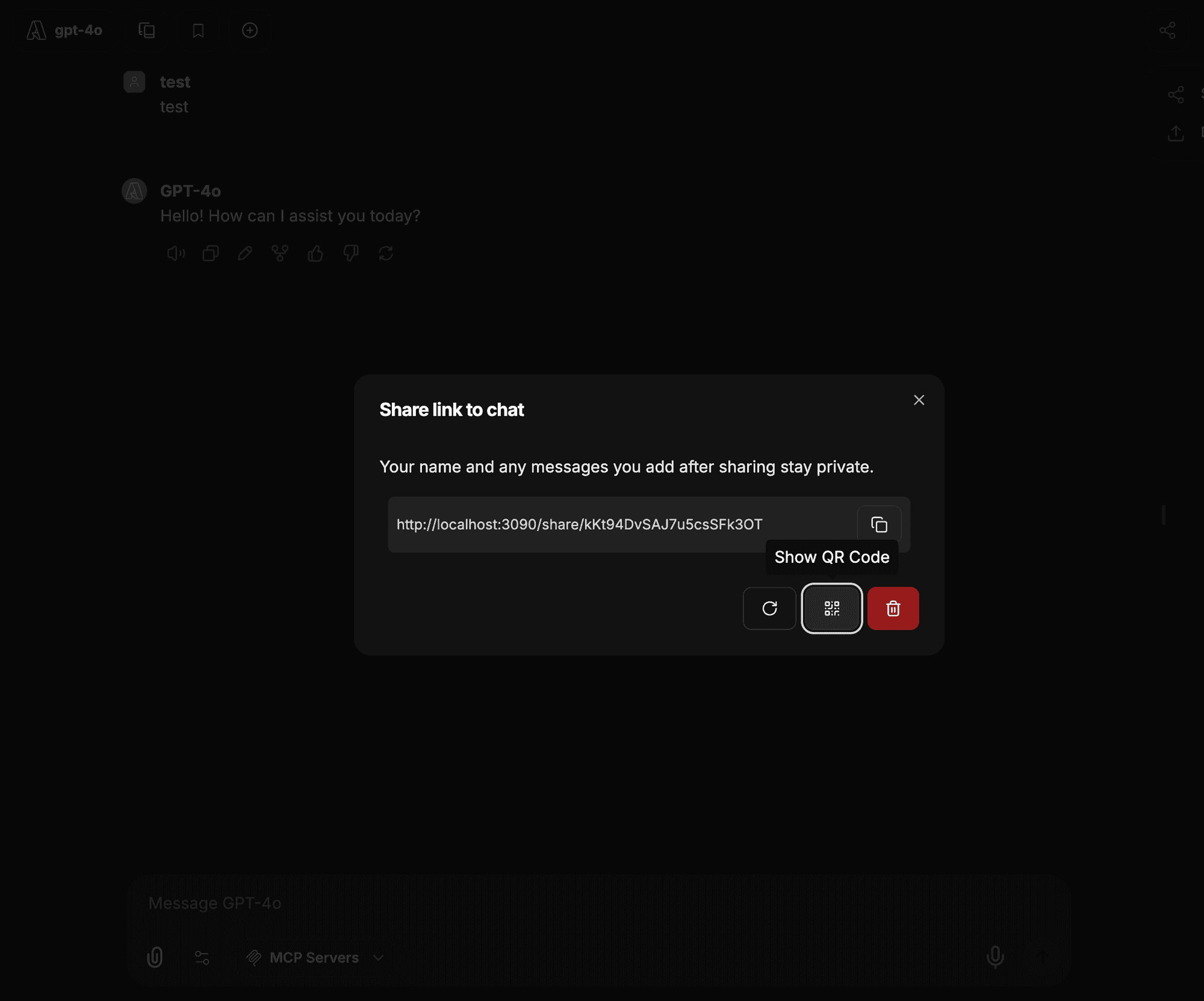
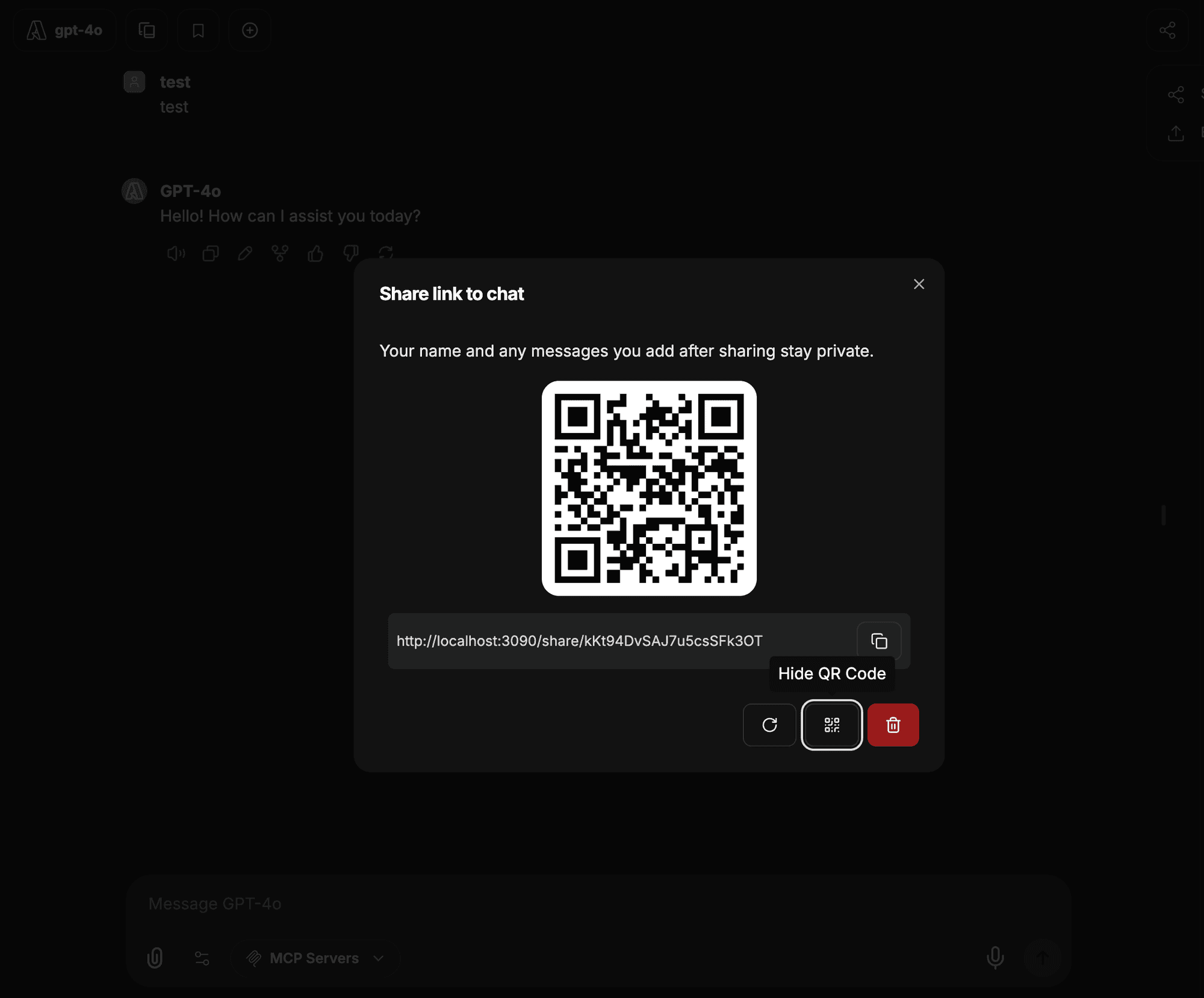
QR codes are handy for presentations, quick mobile access, printed handouts, and conference demos.
Viewing Shared Conversations
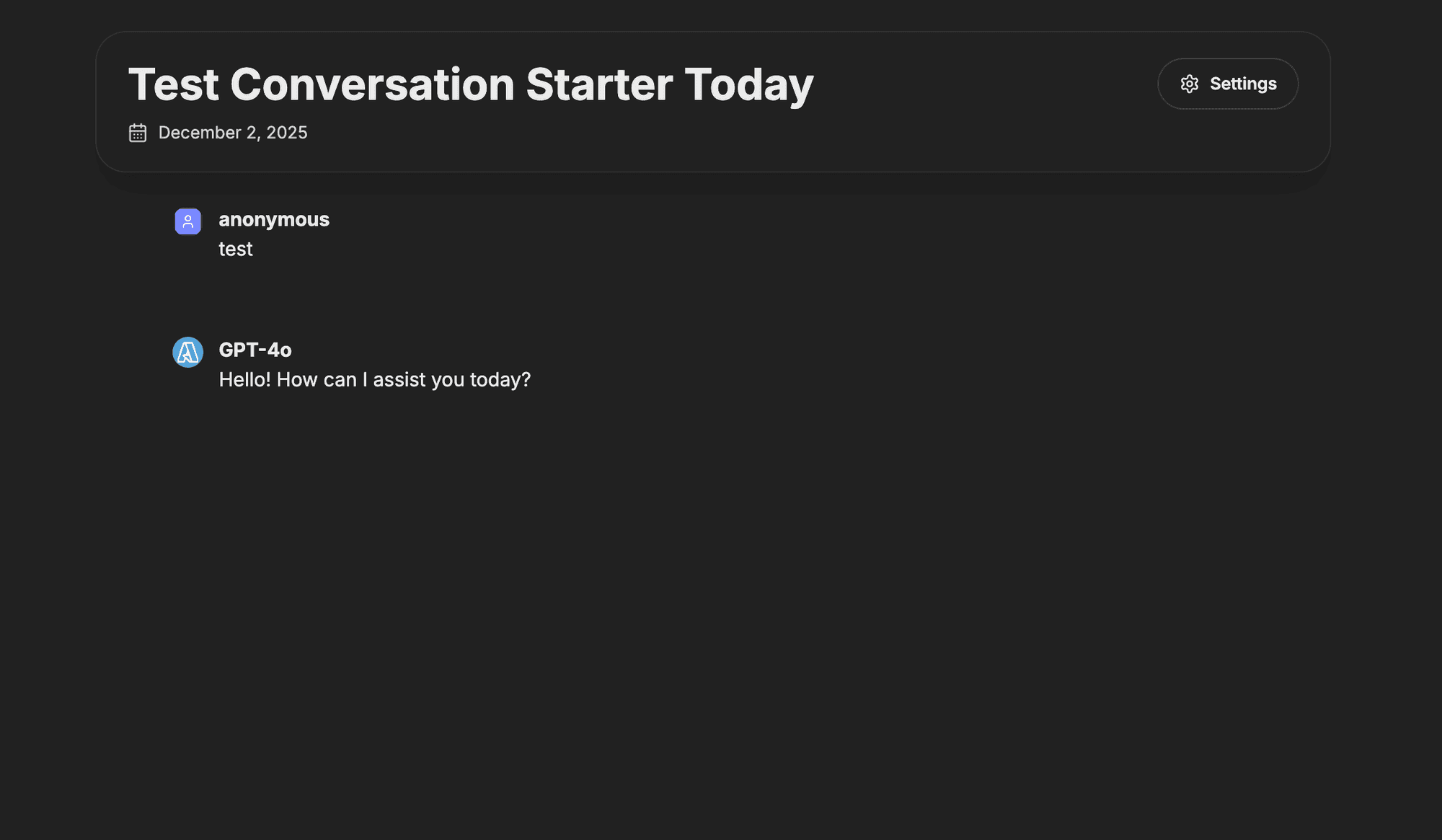
When someone opens your link, they see a focused, read-only view of the conversation, including the date the link was published, the full message history, and any artifacts you generated.
Branching
Shared links preserve conversation branches, so recipients can follow the different paths the discussion took. Use the branch navigation arrows to move between them.
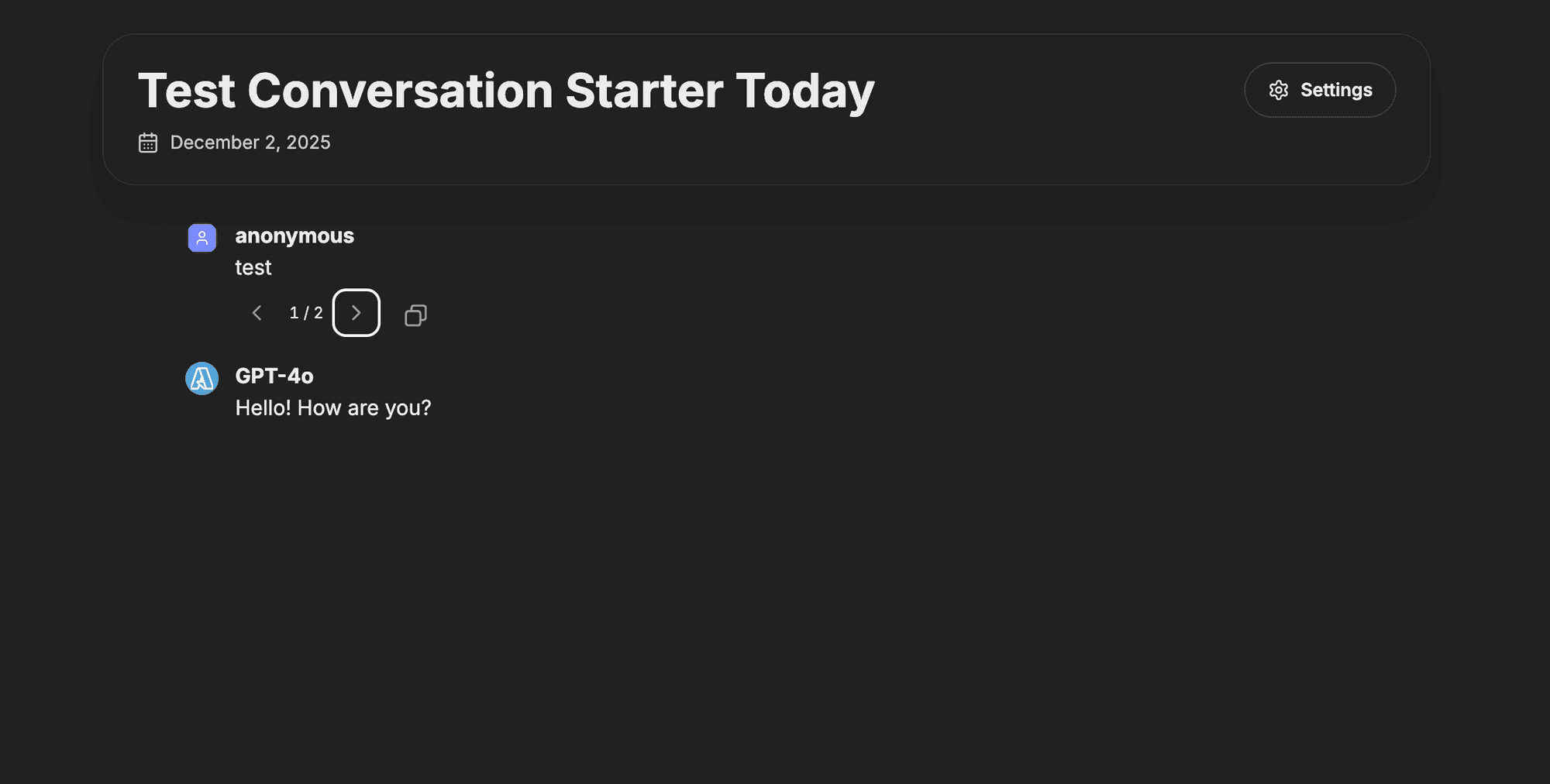
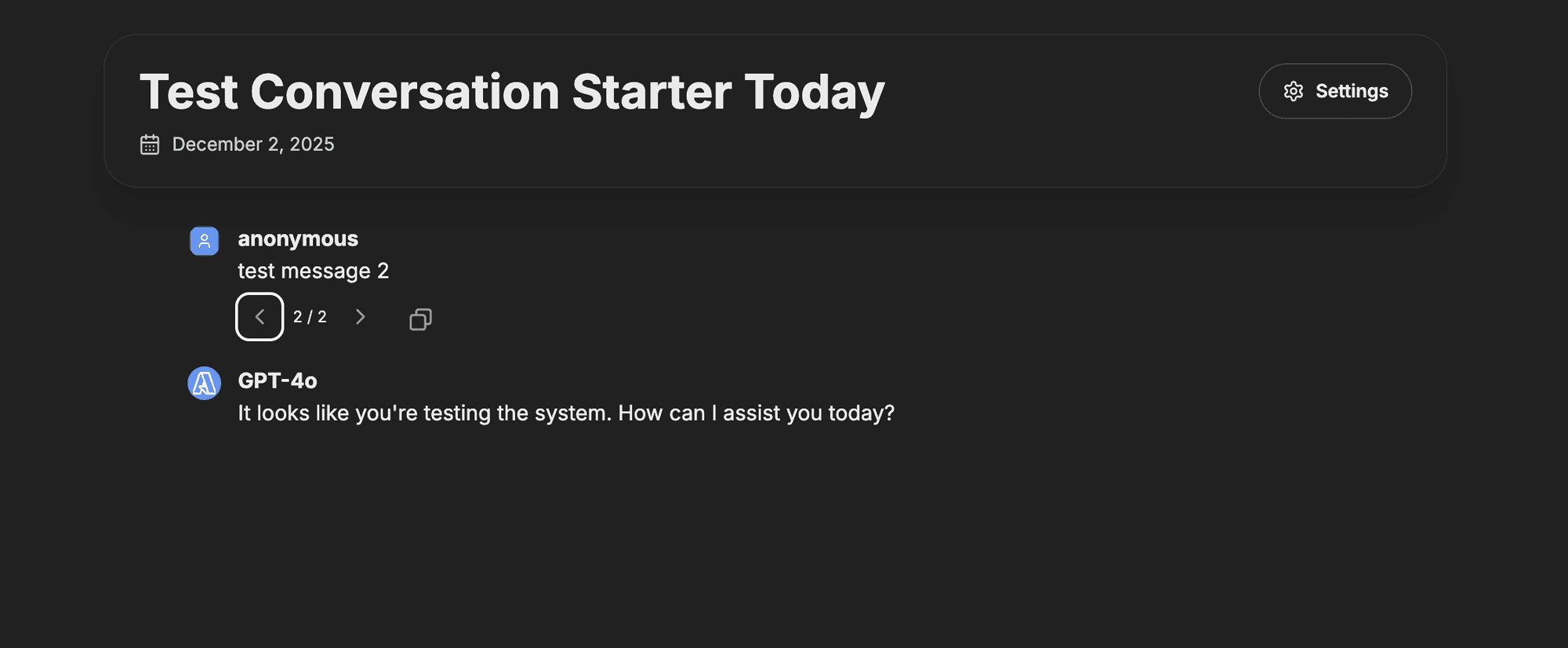
This is useful for showing how different prompts lead to different AI responses, or how a single problem can be approached several ways.
Artifacts
Artifacts generated during the conversation stay fully functional in shared links.
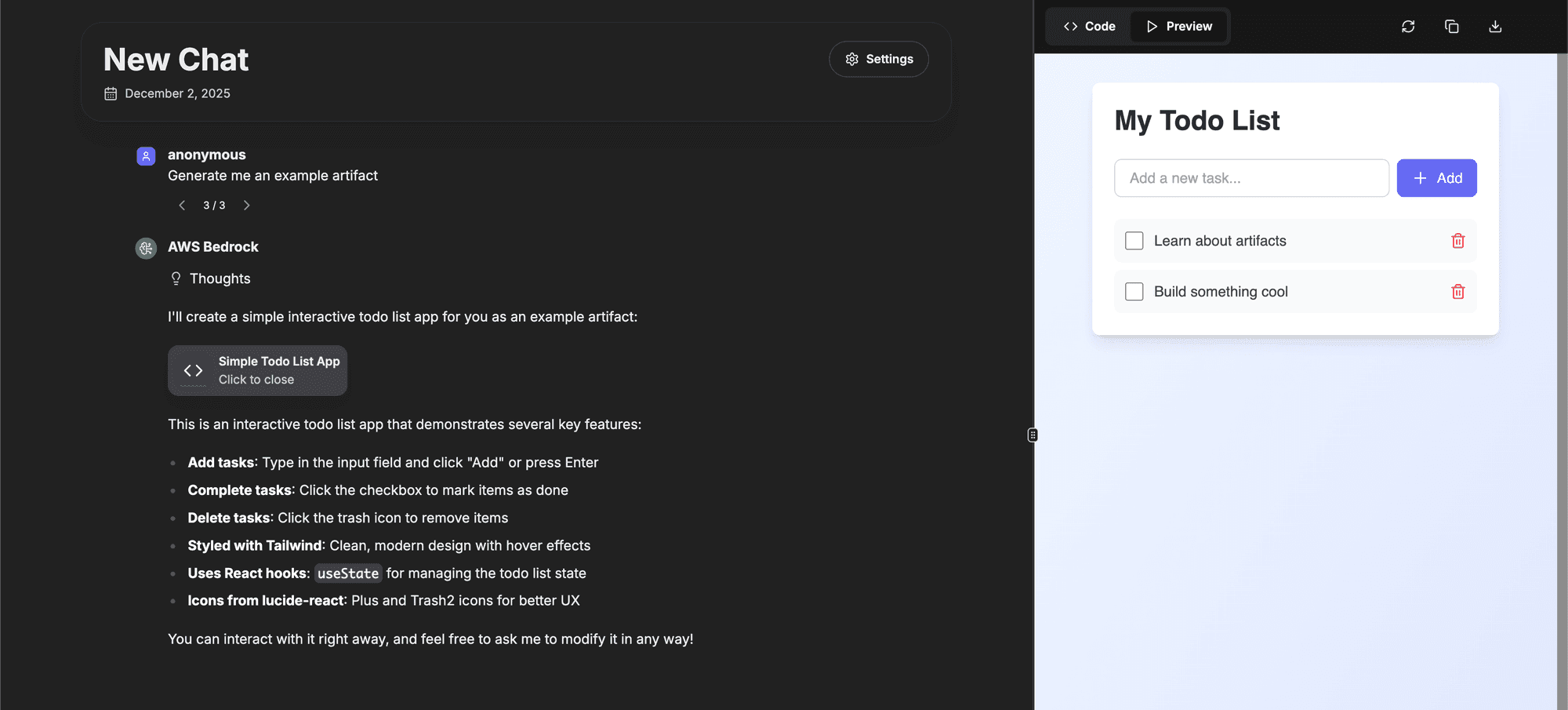
Recipients can:
- View interactive React components.
- See HTML previews.
- Examine Mermaid diagrams.
- Read the underlying code and the context it was generated in.
Recipient Preferences
Viewers can adjust the interface to their own preferences without affecting your settings.
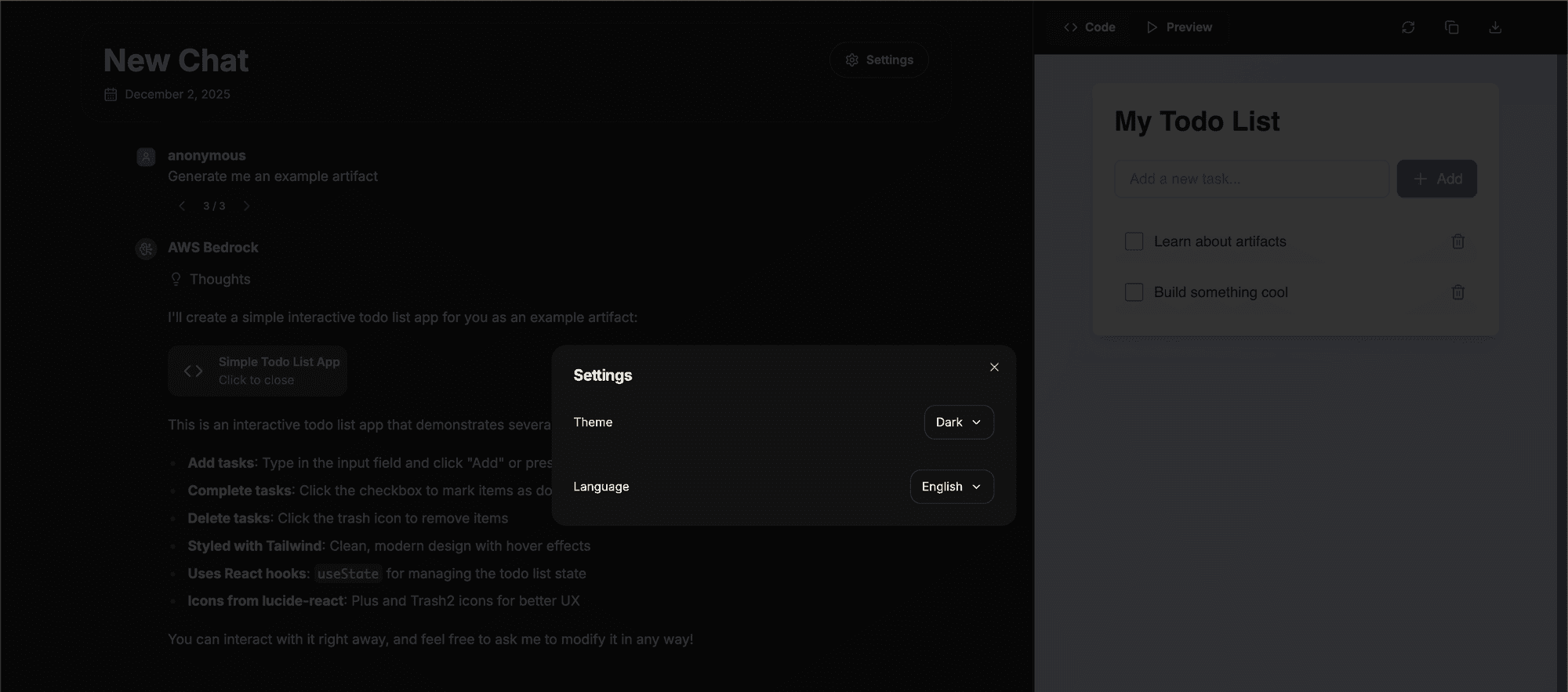
- Theme: Light, dark, or system.
- Language: View the interface in their preferred language.
Managing Your Shared Links
Open the Shared Links dashboard under Settings → Data Controls to review every conversation you've shared.
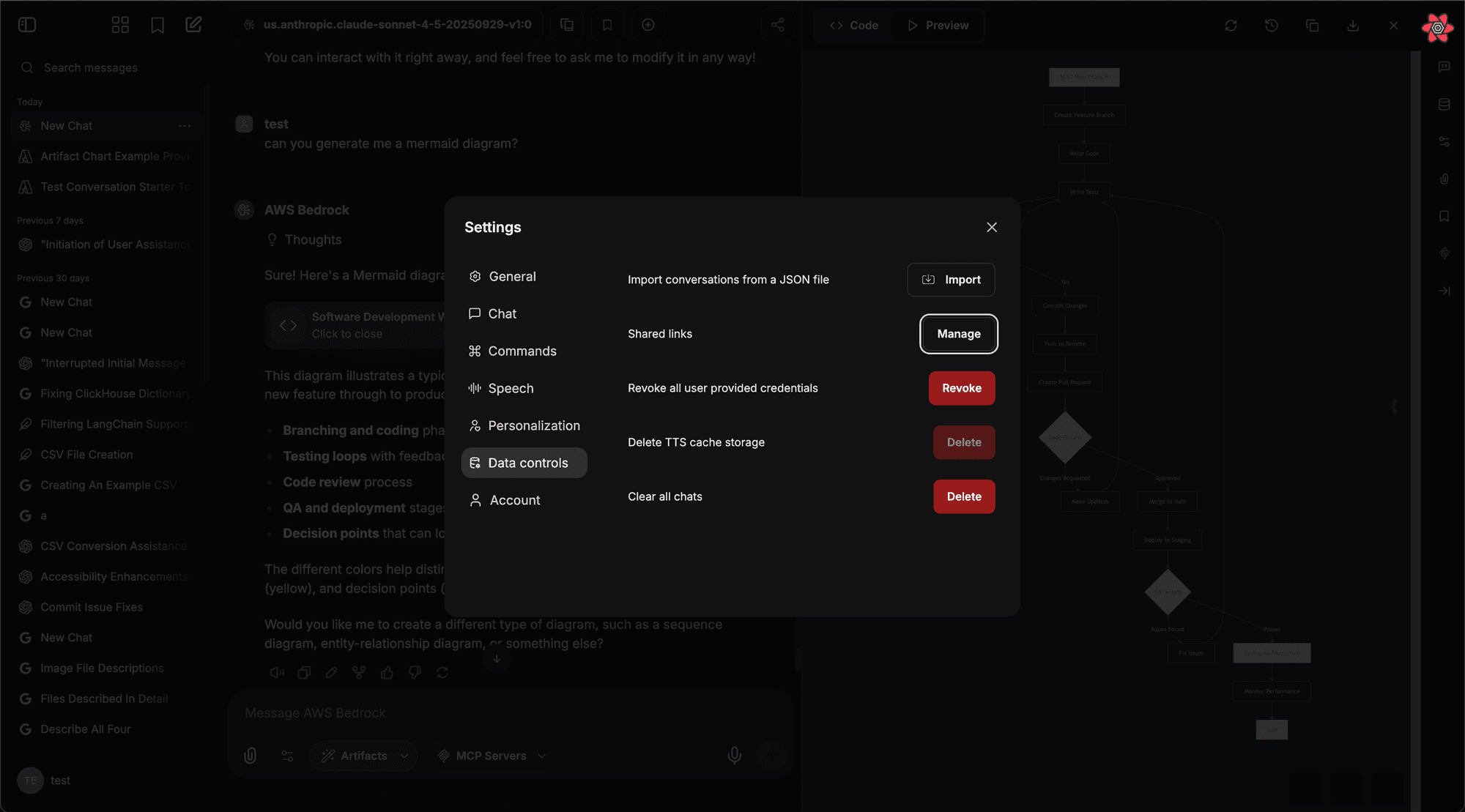
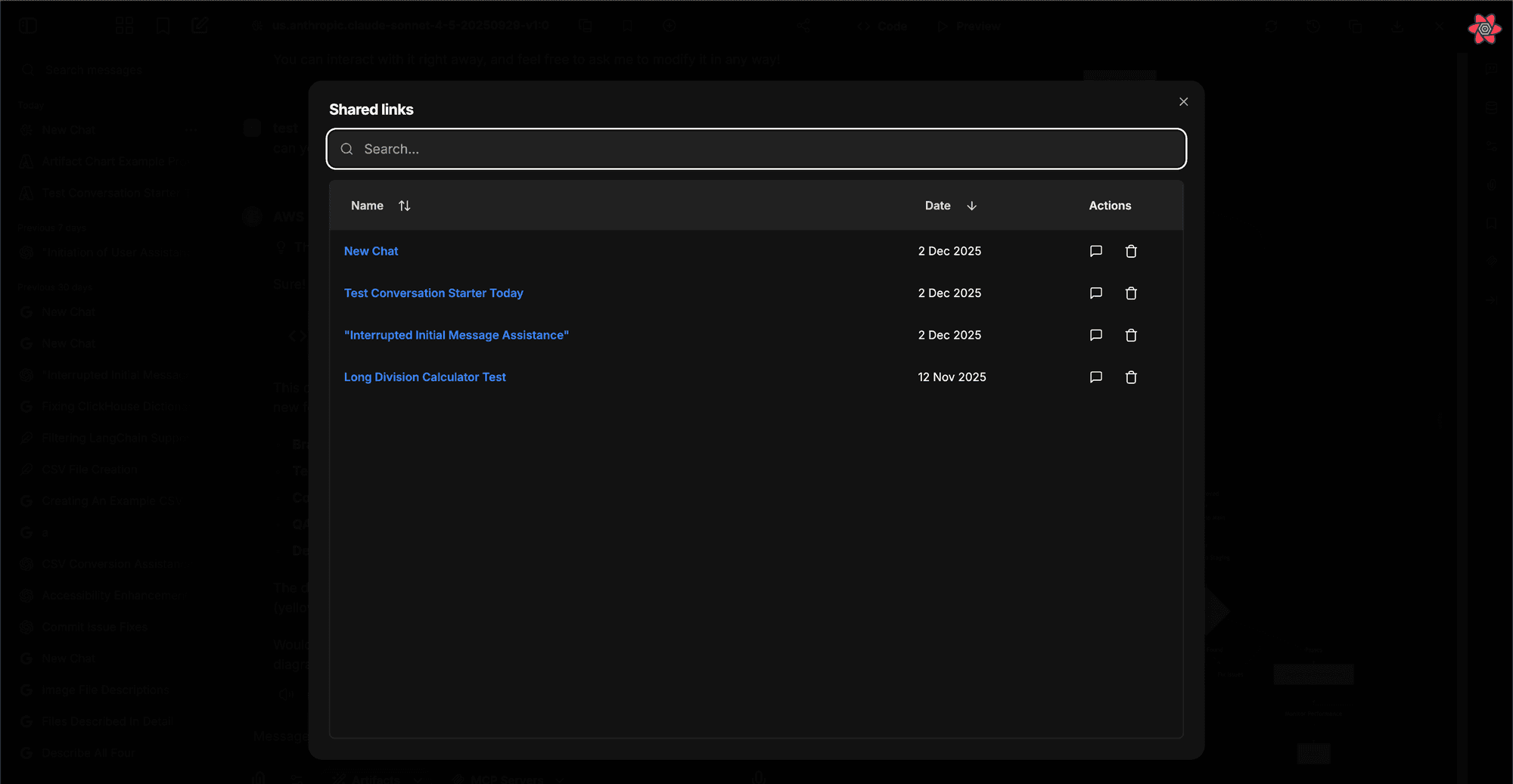
From the dashboard you can:
- View all links: See every conversation you've shared.
- Search and filter: Find a specific shared link and preview its content.
- Revoke access: Delete a link to stop sharing immediately.
Configuration
Two environment variables in your .env file control the feature:
ALLOW_SHARED_LINKS(default:true): Enables the shared links feature. Set tofalseto stop users from creating links.ALLOW_SHARED_LINKS_PUBLIC(default:false): Controls whether links open without authentication. By default, recipients must be logged in. Set totrueto allow public, unauthenticated access.
Role permissions decide which users can create links, share them with authenticated users, or make them visible to everyone on the instance:
sharedLinks.public controls whether a user can toggle "share with everyone." ALLOW_SHARED_LINKS_PUBLIC still decides whether those public links are viewable without logging in.
For the full environment variable reference, see the .env Configuration page.
Frequently Asked Questions
Last updated on